
1
Create your free draft
Add your event details and make the guest page feel personal. Activate Free for 30 days without a card, or choose a paid package for a longer event.
Create your free draft ↗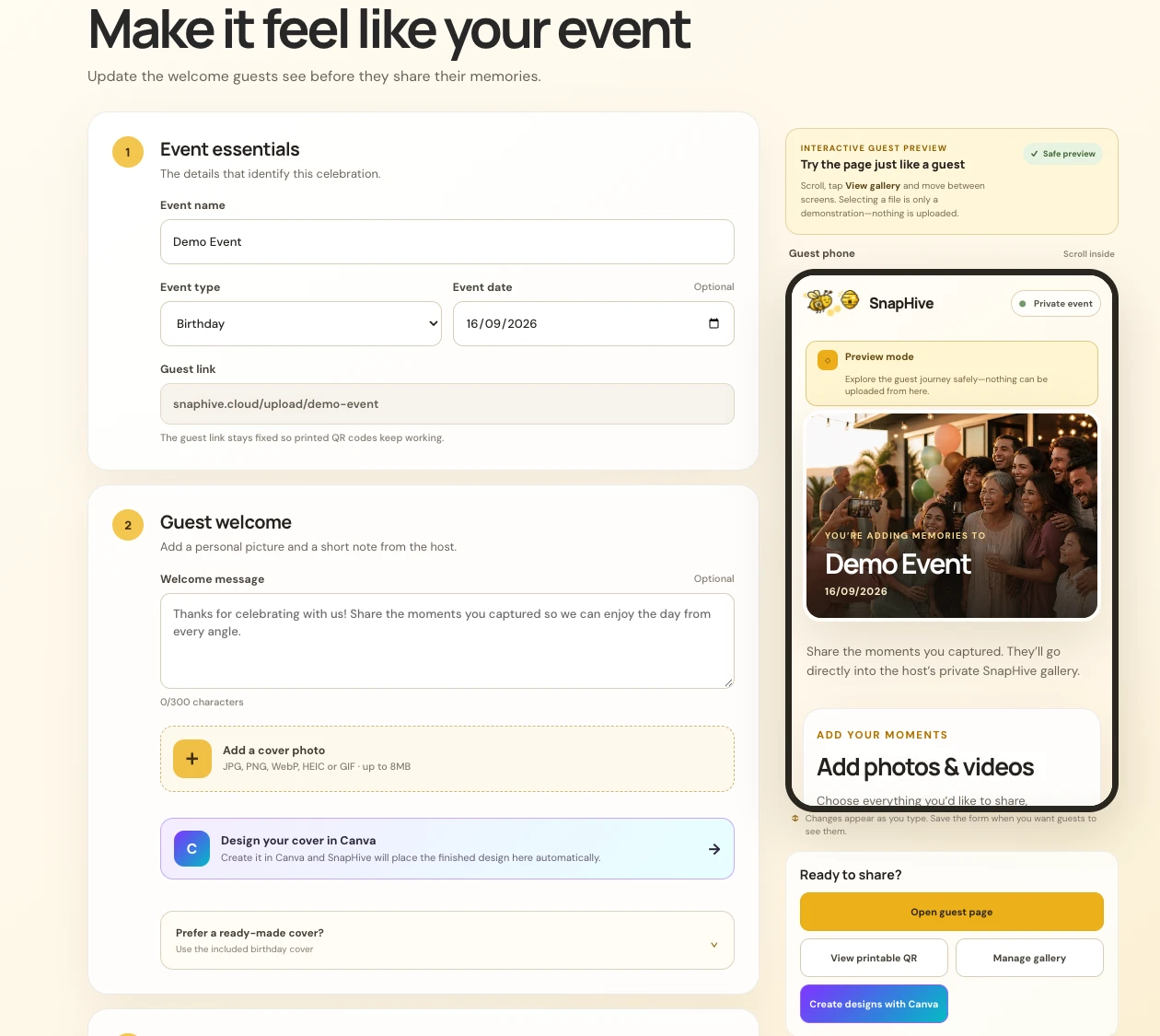
Simple from the first scan
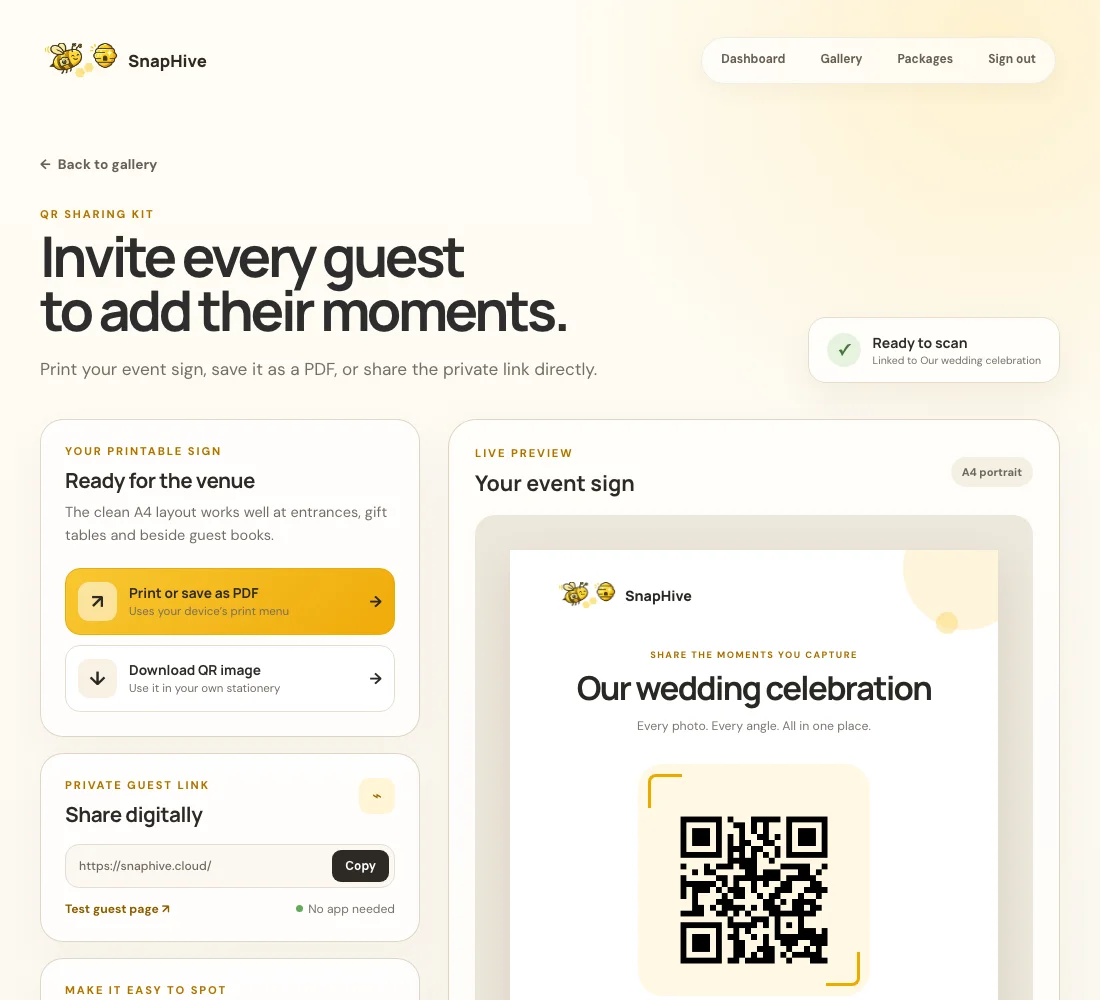
Create your event, activate Free or choose a paid package, then share your private QR code and guest link. Guests need no app or account.
Jump to the host checklist and troubleshooting ↓
Add your event details and make the guest page feel personal. Activate Free for 30 days without a card, or choose a paid package for a longer event.
Create your free draft ↗Once activated, print the sharing kit or send the private link before, during or after the event.
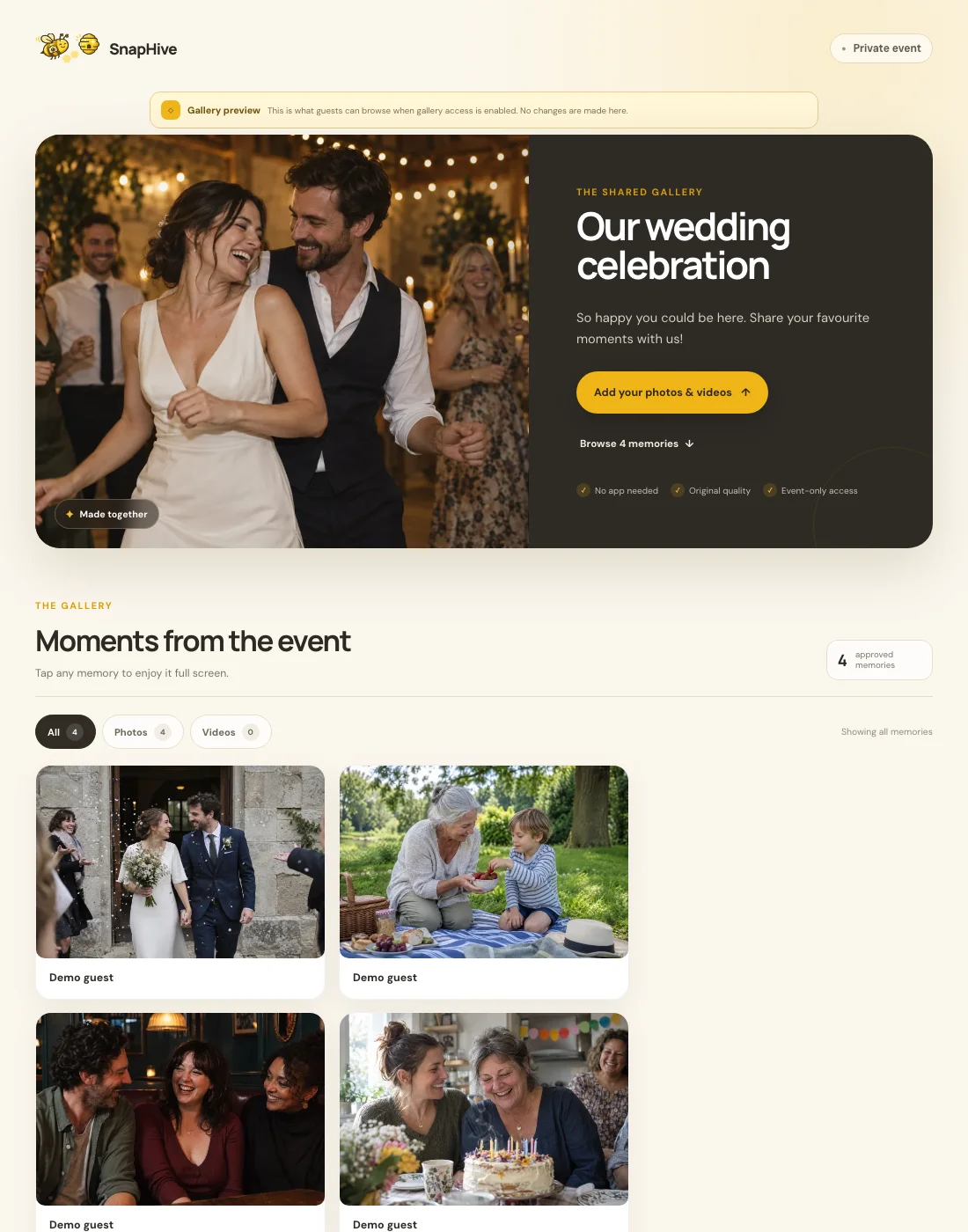
Approve guest uploads, browse the shared gallery and download the original files.
Your host checklist
The product screenshots above are public examples, not your event. Use the checklist below when setting up your own celebration.
Create an account and event draft, add your event details, and review your package before inviting guests. A draft does not activate guest uploads.
For Free, verify your email and use Activate free event · Start my 30 days only when you are ready. The 30 days start when you activate, not on a future event date. One free event per verified account includes 50 photos, 3 videos and 500 MB total across all guests, with no card required. Read the Free allowance and recovery terms.
Paid packages activate after payment. Compare their upload and gallery-access periods on the pricing page. Once active, check your event’s upload deadline in its QR sharing kit. Gallery access can last longer than the time guests have to upload.
Guests scan the QR or open the guest link in their browser. They do not need a SnapHive account or an app.
A message saying cloud preparation is pending means the file was saved; do not send it again. If saving could not be confirmed, ask the host to check before retrying. Once the result is clear, Upload more starts a new selection.
In your owner gallery, open Guest access settings. Let guests view the gallery controls whether guests can browse approved memories. Leave Automatically approve new uploads off if you want to review guest uploads first, then choose Save gallery settings.
Use Awaiting review or Review now to find new memories. Choose Approve for guests for an item you want to show, or Hide to keep it out of the guest gallery. A guest not seeing an upload immediately does not necessarily mean it failed.
Open a memory in your owner gallery and use Download original, or choose Download all (ZIP) when memories are available. Use these download controls rather than saving a preview image from the browser.
A large ZIP may need preparation. Return to the gallery to check its status and use Download prepared ZIP when it is ready. If the download is split into parts, save every part. Open the downloaded files to check your copy before deleting anything from your own device.
Free guest access closes after 30 days. Download before expiry, or upgrade the same event while it is active or during its seven-day private recovery period before media deletion. The guest link and QR stay with the same event. There is no Free renewal.
As the host, check that the event is active and its upload period has not ended. Copy the guest link again from the sharing kit and use Test guest page. Changing the event date does not restart a Free event’s clock.
Check the per-file limit and the event’s remaining allowance. The host can compare available paid upgrades from the event’s dashboard. Repeatedly sending the same rejected file will not increase the allowance.
Keep the original files. Ask the host to check which ones arrived before selecting them again, so an uncertain result does not create duplicates. If the problem continues, contact support with the event name and exact error message, but never passwords or payment details.
For package and privacy questions, see the SnapHive FAQ.
Your event. Everyone’s memories.
Create a free draft. Choose your package when you’re ready.